

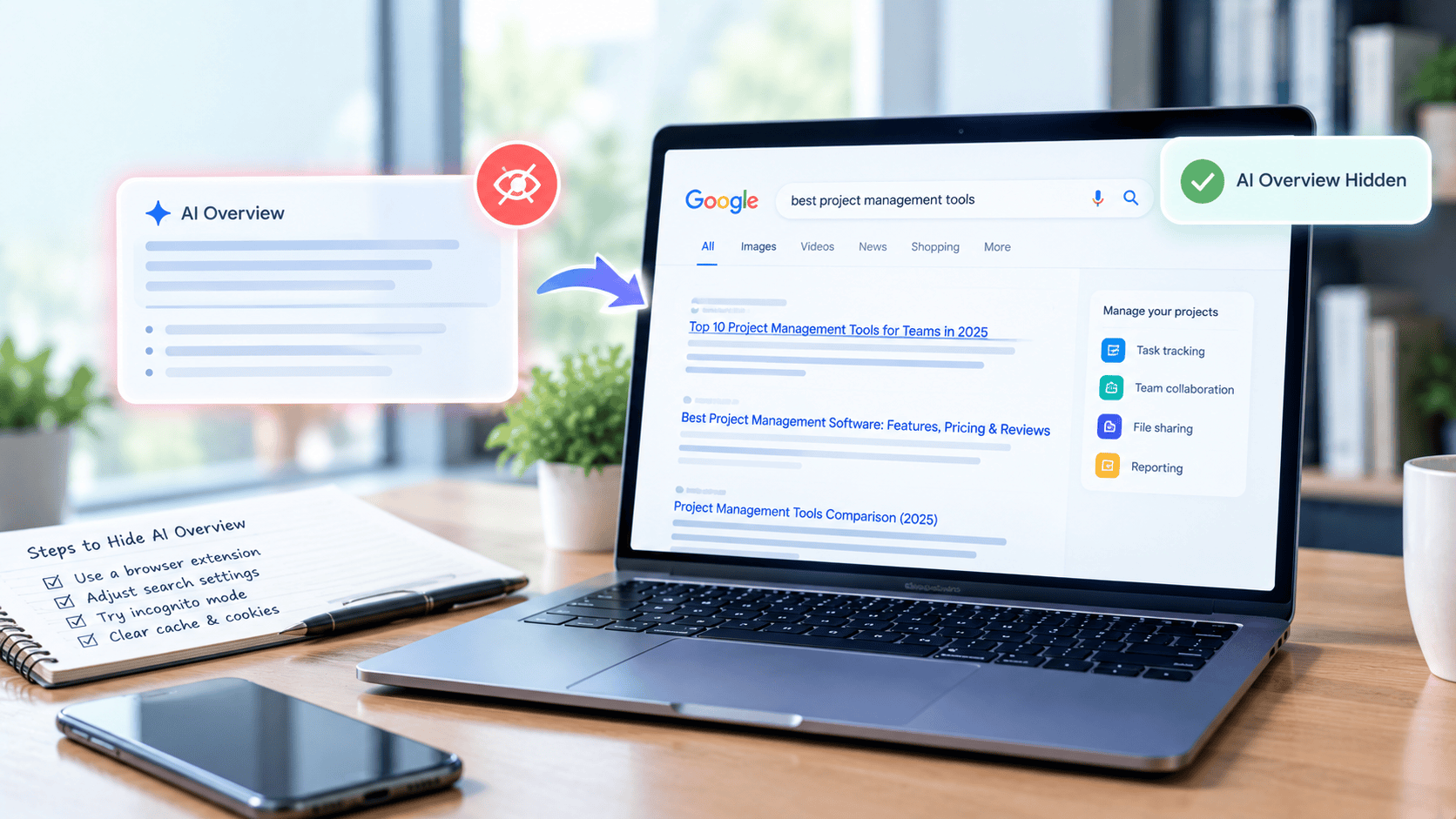
When you search Google for a quick response, a huge AI-generated summary shows at the top instead of website links.
It takes up space and you prefer reading the original sources.
And when that sounds familiar to you, you are not alone.
Google AI Overviews can be useful for quick explanations, however some may prefer to use traditional search results to get the required information.
The positive side is that you can hide AI Overviews for individual searches and create workarounds to make the traditional search results more convenient to access.
But in the present case, Google does not provide a universal switch to permanently disable standard AI Overviews.
Its guide suggests implementing the use of the Web filter, which shows text-based links without AI Overviews.
This guide explains how to remove the AI Overview of Google Search on desktop and mobile versions including Chrome and Safari.
Can You Turn Off Google AI Overviews Completely?
No. Google considers AI Overviews a fundamental Search feature, so there is no official setting that disables them across all searches.
However, there are several alternatives:
- Google Web filter is used to present links in the form of traditional text-based links.
- Develop a personalized search shortcut in Chrome desktop that directs to the Web results at Google.
- Use the Web filter manually in Safari and mobile browsers.
- In Google Search Labs, turn off separate AI experiments, in case you have turned them on previously.
Keep in mind that turning off an experimental feature does not necessarily remove standard AI Overviews.
How to Hide AI Overview in Chrome and Safari
1. How to Get Rid of AI Overview in Google Chrome
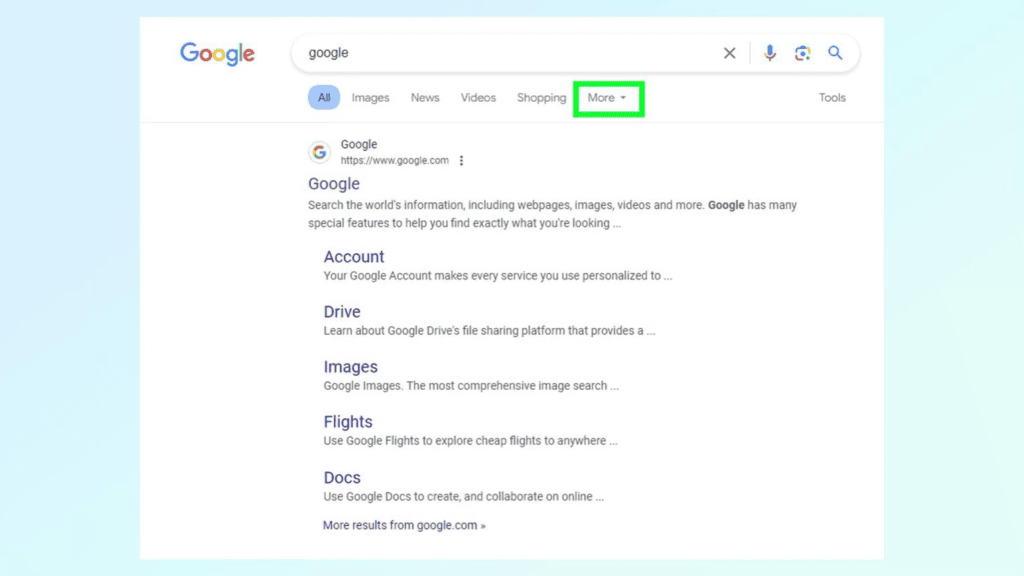
Chrome users have two practical options: select the Web filter after searching or create a custom search shortcut for repeated use.
Method 1: Use Google’s Web filter
- Open Chrome and go to Google Search.
- Type in your search query and press Enter.
- Look at the filters beneath the search box.
- Select Web. If you cannot see it, click More to find the option.
- Browse the results without the AI Overview panel.
This is Google’s documented workaround. When you carry out a new search, you might be required to choose the Web again.
Method 2: Create a custom search engine
When you regularly want traditional search results, create a shortcut in Chrome on your computer.
- Open Chrome Settings.
- Select Search engine, then Manage search engines and site search.
- Find the section for site search and select Add.
- Enter Google Web as the search engine name.
- Enter the web as the shortcut.
- In the URL field, enter: https://www.google.com/search?q=%s&udm=14
- Save your new search shortcut.
As you are going to use it, enter web in the address bar, press Space or Tab when asked to, enter your query and press Enter.
The udm=14 parameter opens Google’s Web results view.
This is a workaround rather than an officially guaranteed permanent setting, so Google could change its behavior.
2. How to Get Rid of AI Overview in Safari
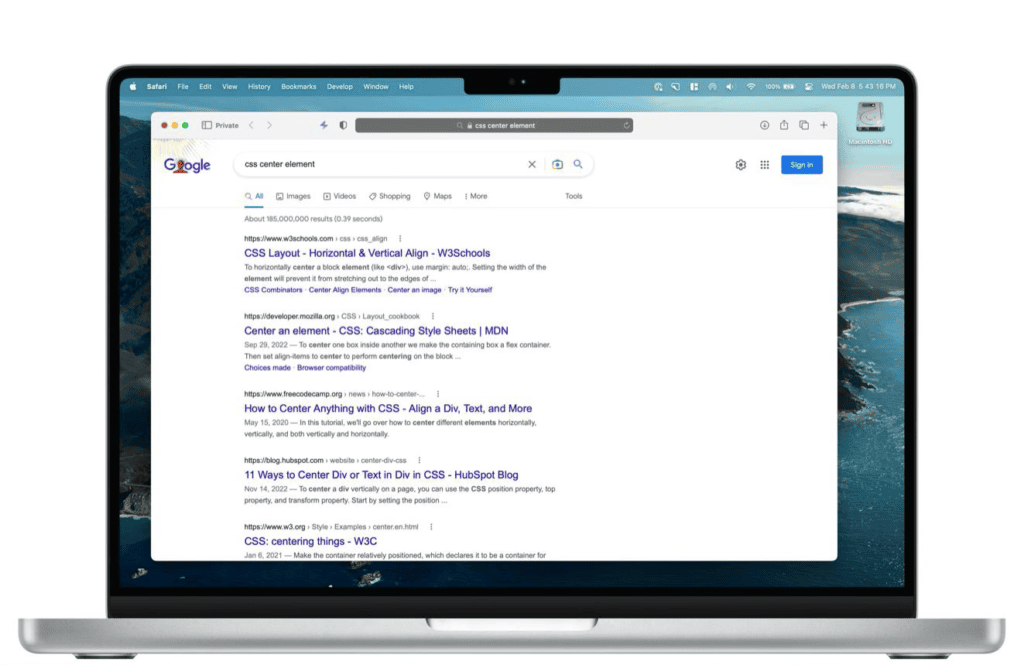
Safari doesn’t have an option to disable Google’s AI Overviews. The simplest is to employ the Web filter in manual mode.
On a Mac:
- Open Safari and visit Google Search.
- Enter query and press Return.
- The search filters are located below the search box.
- Browse the traditional text-based results.
On an iPhone or iPad:
- Open Safari and search Google as usual.
- Find the search filter row on the results page.
- Tap Web or locate it under More.
- Open the links you need from the filtered results.
In Safari, it is not as easy to enable a custom search engine configuration as on Chrome desktop.
A Web-filter search URL can be bookmarked or the filter may be used manually.
Installing browser extensions and other workarounds must be reviewed for privacy and permissions.
Other Ways to Hide Google AI Overviews
Use the udm=14 search URL. The search URL can be modified to include a query parameter with the addition of the following query parameter: &udm=14. This is a request to the Web results view, no longer needing you to navigate the filter menu.
Turn out AI tests in Search Labs. You can enable the experimental AI search features of Google, visit Google Search Labs, log in and read your active experiments.
Switch the appropriate experiment off (where possible). This is does not mean that regular AI Overviews will vanish.
Send feedback to Google. In case an AI Overview is not correct or helpful, tap on its thumbs-down button or tap on the three-dot menu to report the problem.
The feedback can be used by Google to work on Search, but it is not an individual opt-out switch.
Why Does Google Keep Showing AI Overviews?
Google shows AI Overviews where the systems identify that an AI-generated summary might assist to answer a search query.
Such summaries can be used on informational searches, how-to queries, comparisons, and other queries where Google is determined that a synthesized answer will be valuable.
This experience is not always welcome, however. You might prefer not to read an AI-written summary and go to web sites directly to refer to technology specifications, product specifications, or original information.
AI Overviews may also occupy prime screen space, especially on mobile devices replacing the customary organic search results with more results further down the page.
It may render locating a particular site inconvenient.
There is no general place where it is possible to switch standard AI Overviews off indefinitely within Google.
The simplest workaround is the Web filter, which is the choice of those who would like to get the usual search results.
You may also bookmark a Web-filter search URL, or set a shortcut on the desktop in Chrome to access more easily to these results.
Frequently Asked Questions
Can I permanently remove AI Overview from Google?
Not through an official universal setting. The Web filter removes AI Overviews from the filtered results page, while browser shortcuts can make that view easier to access.
Does the Web filter work on mobile?
Yes. You can select Web after searching in Chrome or Safari on a phone. The location of the filter may vary depending on your device and Google’s interface.
Does disabling Search Labs turn off every AI Overview?
No. Search Labs controls experimental features. Standard AI Overviews may still appear after you disable an experiment.
Will adding -ai to my search remove AI Overview?
Adding -ai to a query has been shown to work by some users, yet it is not Google’s documented method and may not always work. The Web filter is the more reliable starting point.
Final Thoughts
If you want to know how to get rid of Google AI Overview, start with the Web filter. It is Google’s official way to view traditional text-based search results without AI Overviews.
Chrome desktop users can also use the shortcut udm=14 so that they can easily access it, and the Safari and mobile users can select Web manually.
Though you cannot completely disable standard AI Overviews with an official universal setting, these workarounds enable you to get back to the traditional Google search experience.